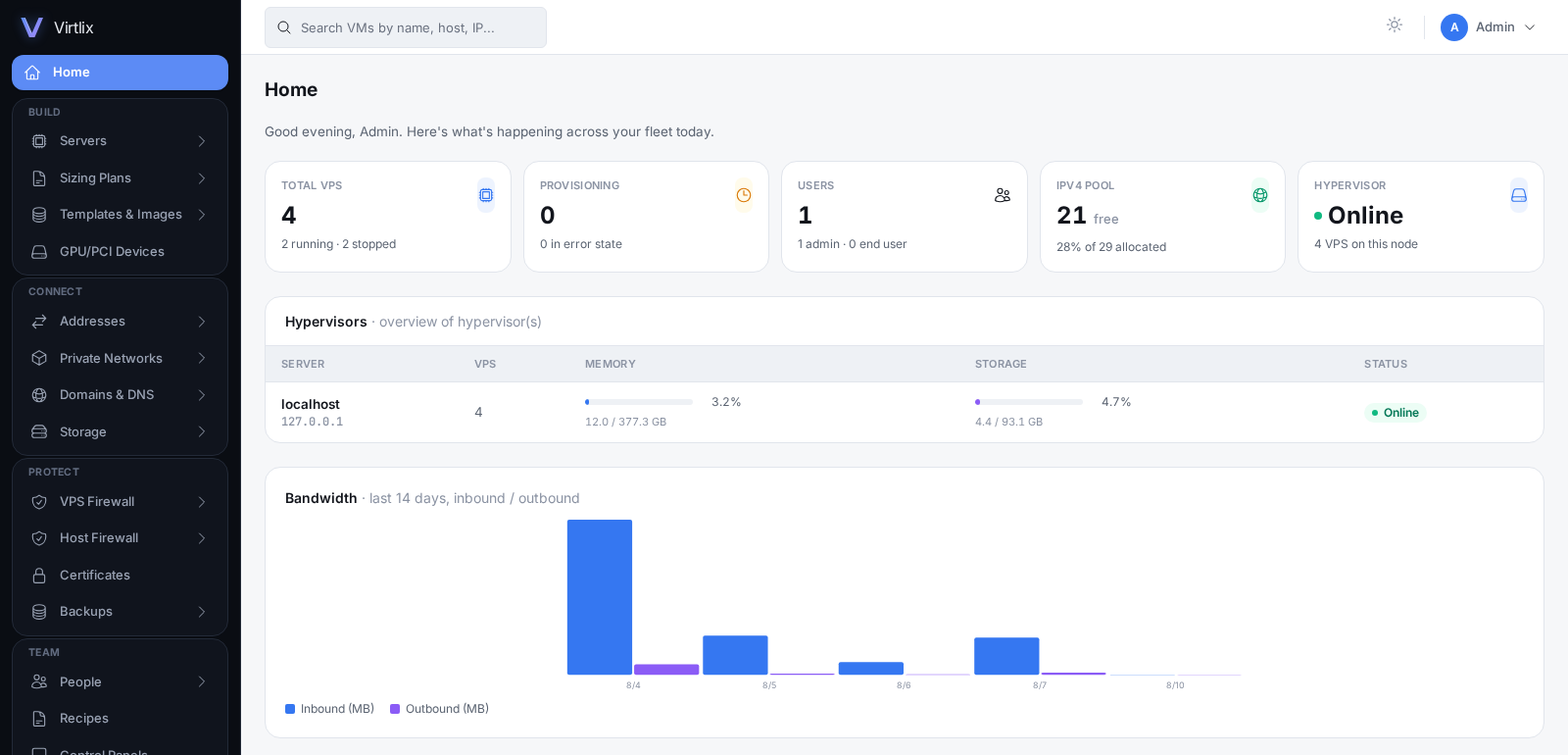
The panel itself - right after install.sh finishes.
01
OS & Hardware Requirements
Operating System
- 64-bit Linux, fresh minimal install, with root / sudo access
- Enterprise Linux family: AlmaLinux / Rocky / RHEL / CentOS Stream 8–9–10
- Debian family: Debian 11–13, Ubuntu 20.04 / 22.04 / 24.04 LTS
- All required packages are installed automatically
AlmaLinux 8/9/10Rocky 8/9/10Debian 12/13Ubuntu 22/24
Hardware / Virtualization
- Hardware virtualization required - Intel VT-x or AMD-V enabled in BIOS
- Bare-metal / dedicated server, or a VM with nested virtualization
- Minimum 2 vCPU / 4 GB RAM - 8 GB+ recommended for real workloads
- Verify:
egrep -c '(vmx|svm)' /proc/cpuinfomust be > 0
02
Partition Requirements & Scheme
Recommended Partition Scheme
Create these partitions when you install the OS on the dedicated server (single-disk example):
| Mount point | Size | Filesystem | Purpose |
|---|---|---|---|
/bios | 512 MB | FAT32 (vfat) | EFI system partition — UEFI servers only |
/boot | 1 GB | ext4 | Kernel & initramfs |
swap | 2–8 GB | swap | Swap (≈ RAM, capped at 8 GB) |
/ | 40 GB | xfs or ext4 | OS, Virtlix, and its application services |
/var | Remaining disk | xfs | VM disks, OS templates, backups & logs — put your largest, fastest storage here |
ℹ️Virtlix writes guest disks to
/var/www/virtlix/storage/vms and OS templates to /var/lib/virtlix/templates — both live under /var, so one large /var partition holds all heavy VM data. Prefer simplicity? Skip the separate /var and give / the whole disk instead.Sizing & Notes
- Minimum: 2 vCPU, 4 GB RAM, ~60 GB disk — but VM storage is what you'll actually fill, so size
/vargenerously - Use xfs for
/var— it handles large sparse qcow2 images better than ext4 - BIOS / legacy (non-UEFI) servers: drop
/biosand add a smallbios_grubpartition instead - NVMe / SSD RAID under
/varis ideal for guest disk I/O
03
Supported Storage Types
Storage Backend
- Local disk, qcow2 image files (default backend)
- Remote Filesystem (NFS) storage pools - mounted automatically and kept mounted across reboots
- VM disks are copy-on-write overlays on a shared cached OS base - new VMs & reinstalls are near-instant
- Thin-provisioned: guests only consume the space they actually write
- SSD / NVMe strongly recommended for guest I/O
Filesystems & Layout
- OS template cache:
/var/lib/virtlix/templates - Per-VM overlay disks provisioned as sparse
.qcow2 - Supported: xfs, ext4 local filesystems, or an NFS export mounted as a pool
- Modeled for future support: Ceph RBD, StorPool, Lightbits NVMe/TCP
04
Installation
One-line install
Run as root on the prepared server. The installer sets up all required packages, opens HTTP/HTTPS, downloads the panel, runs migrations and activates your license.
install.sh
curl -fsSL https://virtlix.com/install.sh | bash -s -- key=YOUR-LICENSE-KEY network=bridge bridge_name=br0
📄Full installer output is logged to
/var/log/virtlix-install.log. Your license key locks to this server's public IP on first activation.05
Installation Parameters
| Parameter | Required | Default | Description |
|---|---|---|---|
key= | REQUIRED | — | Your Virtlix license key |
network= | optional | nat | Guest networking mode at install time: nat or bridge |
bridge_name= | optional | vmbr0 | Bridge interface, used when network=bridge (e.g. br0) |
app_dir= | optional | /var/www/virtlix | Install directory for the panel |
ℹ️These flags only set the install's default network. Every IP you add afterward is checked against your host's real networking and wired up automatically - already bridged, a shared subnet (MacVTap), or a provider that routes additional IPs to your server's one fixed MAC (Vultr, Hetzner, OVH) - so most deployments never need to touch these flags at all.
06
Troubleshoot
KVM not available / “no acceleration”
Enable Intel VT-x / AMD-V in BIOS. Confirm
egrep -c '(vmx|svm)' /proc/cpuinfo > 0 and that /dev/kvm exists.License activation failed
The key is likely bound to another server's IP. Use Reset binding on the license in this panel, and ensure the server can reach
virtlix.com over HTTPS.Install failed midway
Read the last lines of
/var/log/virtlix-install.log — the installer prints the failing step there.Panel shows HTTP 500
Check
storage/logs/laravel.log, and that php-fpm and libvirtd are running. On RHEL family, check SELinux denials in /var/log/audit/audit.log.VMs won't start / no networking
systemctl status libvirtd must be active. For bridge mode, make sure the bridge you named actually exists on the host.Slow first VM create
The OS template downloads once, then caches. Pre-warm images from OS Templates → Download to node so later builds are instant.